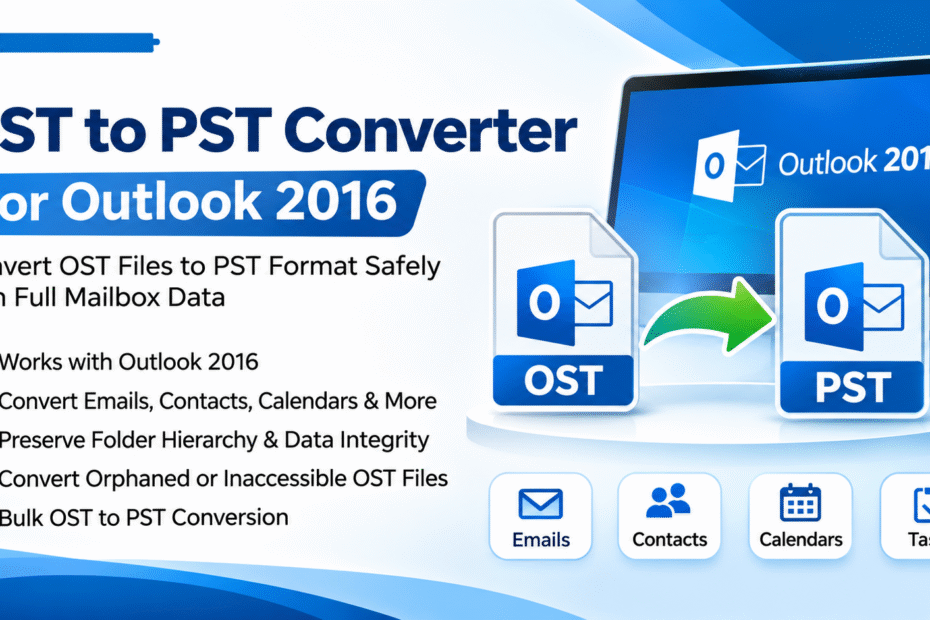
Microsoft Outlook 2016 is widely used by professionals and businesses to manage emails, contacts, calendars, tasks, and other mailbox information. Outlook stores mailbox data in two primary formats: OST (Offline Storage Table) and PST (Personal Storage Table). Although both formats support email data management, they serve different purposes.
An OST file allows users to work with mailbox information offline and synchronize changes when the Exchange Server or Microsoft 365 connection becomes available. A PST file, on the other hand, is commonly used for local email storage, backup, archiving, and transferring mailbox data.
Users may need to convert OST to PST in Outlook 2016 when they want to create an independent mailbox backup, migrate email information, or access mailbox data in another Outlook profile. However, converting an OST file is not always straightforward, particularly when the original Outlook account or Exchange connection is unavailable.
This is where professional OST to PST Converter for Outlook 2016 software can help simplify the conversion process.
What Is an OST to PST Converter for Outlook 2016?
An OST to PST converter is a specialized software application designed to extract mailbox information from an OST file and save it into PST format.
The conversion process allows users to access supported mailbox information through a PST file without depending on the original OST synchronization environment.
Depending on the software’s capabilities, users may be able to convert:
- Emails and email attachments
- Contacts and address book entries
- Calendar appointments and events
- Tasks and notes
- Inbox and Sent Items folders
- Deleted Items and archived mailbox folders
- Other supported mailbox data
A reliable converter should preserve the original folder hierarchy and maintain important email properties, such as sender, recipient, subject, date, and attachments.
Why Convert OST Files to PST in Outlook 2016?
There are several situations where Outlook 2016 users may require OST to PST conversion.
1. Create an Independent Email Backup
OST files are associated with an Outlook profile and its connected mailbox environment. They are not designed to function as independent backup files.
Converting OST to PST provides a portable local copy of supported mailbox information. Users can store the resulting PST file on an external drive or another secure storage location.
2. Access Orphaned OST Files
An orphaned OST file may remain on a computer after an Exchange account has been deleted, a mailbox has been disconnected, or an Outlook profile has become unavailable.
In these situations, users may need a specialized converter to extract accessible mailbox information from the existing OST file.
3. Migrate Outlook Mailbox Data
Organizations sometimes migrate email data between Outlook profiles, computers, or email environments. PST files can simplify certain migration and archival workflows.
Converting OST files into PST format helps prepare mailbox data for supported Outlook import processes.
4. Recover Important Business Emails
Emails often contain business discussions, financial records, project updates, and customer communication.
If an Outlook profile becomes inaccessible, extracting recoverable data from an OST file can help users preserve important information.
5. Manage Multiple Mailbox Files
IT administrators and business professionals may work with multiple OST files. A batch conversion feature can simplify processing when several files need to be exported.
Common Challenges of Manual OST to PST Conversion
Outlook 2016 provides built-in export functionality, but the standard process has certain limitations.
For example, users can export mailbox data through Outlook’s Import and Export Wizard when the original mailbox is accessible and the account is functioning correctly.
However, manual export may not be suitable in every situation.
Common challenges include:
- The original Exchange account is unavailable.
- The OST file is orphaned or disconnected.
- The Outlook profile is damaged.
- The mailbox cannot synchronize.
- The OST file is inaccessible through the original account.
- Users need to process multiple OST files.
- Manual export requires additional configuration.
It is important to understand that an OST file is not automatically interchangeable with a PST file. Simply renaming the file extension does not convert its internal structure.
How to Convert OST to PST in Outlook 2016 Manually
If the original mailbox is accessible and Outlook 2016 is functioning properly, users can try the built-in export method.
Follow these steps:
Step 1: Open Microsoft Outlook 2016
Launch Outlook and sign in to the account associated with the OST file.
Step 2: Open the File Menu
Click the File tab in the Outlook interface.
Step 3: Select Import/Export
Choose Open & Export and then select Import/Export.
Step 4: Choose Export to a File
Select the Export to a File option and click Next.
Step 5: Select Outlook Data File (.pst)
Choose Outlook Data File (.pst) as the destination format.
Step 6: Select Mailbox Folders
Choose the mailbox folder you want to export. Select Include subfolders if you also want to export its subfolders.
Step 7: Choose the Destination
Browse to the location where you want to save the PST file.
Step 8: Complete the Export
Click Finish and configure a password if required.
Outlook will begin exporting the selected mailbox information into PST format.
Note: This method requires an accessible mailbox in Outlook. It does not directly convert an orphaned or disconnected OST file.
When Should You Use Professional OST to PST Converter Software?
When manual export is unavailable or unsuitable, professional OST to PST conversion software may provide an alternative.
A dedicated converter can help users process standalone OST files without relying on the original Outlook mailbox connection, depending on the application’s supported scenarios.
Consider professional software when:
- You cannot access the original Outlook profile.
- The Exchange Server connection is unavailable.
- You need to convert orphaned OST files.
- You want to convert multiple OST files.
- You need selective mailbox folder conversion.
- You want to preserve folder organization.
- You need a straightforward conversion workflow.
Before selecting a tool, verify its compatibility with your OST file, Windows environment, and required Outlook version.
Important Features of the Best OST to PST Converter for Outlook 2016
Choosing suitable conversion software is important for protecting mailbox information.
Here are some features worth evaluating.
1. Outlook 2016 Compatibility
The software should support Outlook 2016 environments and generate PST files that can be opened in compatible Outlook installations.
2. Bulk OST Conversion
Bulk conversion allows users to process multiple OST files without repeating the entire procedure for each file.
3. Selective Folder Conversion
Users should be able to select specific folders, such as Inbox, Sent Items, Contacts, or Calendar, rather than converting everything unnecessarily.
4. Attachment Preservation
Email attachments are important components of business communication. A suitable converter should preserve supported attachments during the conversion process.
5. Folder Hierarchy Maintenance
Maintaining the original folder structure makes it easier to locate emails after importing the converted PST file.
6. Preview Functionality
A preview option helps users inspect mailbox contents before beginning the final conversion.
7. Data Integrity
The conversion process should maintain important email properties and avoid unnecessary changes to the original mailbox data.
8. Easy-to-Use Interface
A simple interface helps both technical and nontechnical users complete the conversion process with fewer complications.
How to Choose Reliable OST to PST Conversion Software
Before purchasing an OST to PST converter, consider the following factors:
- Compatibility: Verify support for the OST file and Outlook 2016.
- Conversion accuracy: Check whether the software preserves emails, attachments, and folder structures.
- Security: Prefer software that processes sensitive mailbox information locally when offline conversion is required.
- Preview: Look for an option to inspect mailbox contents before conversion.
- Trial version: Test the software with a sample OST file before purchasing.
- Technical support: Check whether customer assistance is available.
- Pricing: Compare available licenses and features before making a decision.
Avoid selecting software based only on promotional claims. Test its actual performance with a copy of your mailbox data.
Frequently Asked Questions (FAQs)
1. Can I convert OST to PST in Outlook 2016?
Yes. If the original mailbox is accessible, you can use Outlook 2016’s built-in Import/Export Wizard to export mailbox information into PST format.
2. Can I convert OST to PST without Outlook 2016?
Some professional third-party converters support standalone OST conversion without requiring an active Outlook profile. Verify the software’s specific requirements before using it.
3. Is it possible to convert an orphaned OST file to PST?
Yes, provided the OST file contains recoverable data and the selected conversion software supports orphaned OST files.
4. Does OST to PST conversion preserve email attachments?
A suitable converter should preserve supported email attachments. Always test the output before relying on it as your only backup.
5. Can I convert multiple OST files into PST format?
Yes. Some professional applications provide bulk conversion functionality for processing multiple OST files.
6. Is free OST to PST converter software reliable?
Free tools may be useful for limited requirements, but their conversion capabilities, file-size restrictions, and support options can vary. Evaluate them before processing important mailbox data.
Conclusion
Converting OST to PST in Outlook 2016 can help users create independent mailbox backups, migrate email information, and preserve important business communication. The built-in Outlook Import/Export Wizard is a practical option when the original mailbox remains accessible.
However, manual export may not work when an OST file is orphaned, disconnected, or inaccessible through its original Outlook profile.
In such situations, professional OST to PST Converter for Outlook 2016 software can provide an alternative for extracting supported mailbox information and saving it in PST format.
Before choosing a conversion solution, evaluate its Outlook compatibility, bulk conversion capabilities, attachment preservation, folder structure maintenance, security, and preview functionality. Testing the software with a copy of your OST file is a sensible way to verify its suitability before completing the conversion.